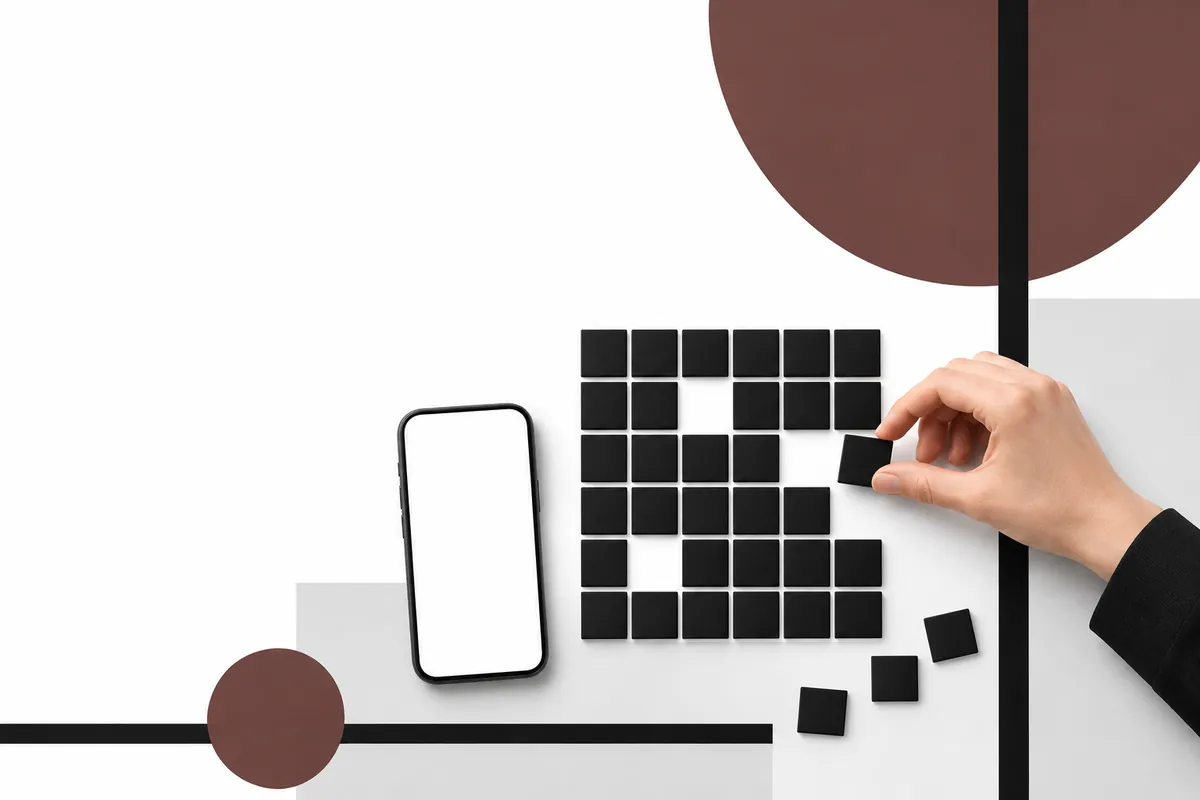
How a vCard QR code works
vCard is a long-standing text format for contact cards, defined in RFC 6350. It is the same format phones and email programs use when you export or share a contact. A short vCard looks like this:
- BEGIN:VCARD
- VERSION:3.0
- N:Morgan;Alex
- FN:Alex Morgan
- ORG:Example Studio
- TEL;TYPE=CELL:+44 7700 900123
- EMAIL:[email protected]
- END:VCARD
The QR code stores that text. The phone camera recognises BEGIN:VCARD and shows an "add contact" option instead of a web link. Nothing is looked up online.
Havelt QR creates contact (vCard) QR codes and a QR code of your own contact card, and saves contacts you scan from other people's codes in its history. Get it on Google Play
Which fields to include
| Field | vCard property | Include? |
|---|---|---|
| Full name | FN and N | Yes |
| Mobile or work phone | TEL | Yes, one or two numbers |
| Yes | ||
| Company and job title | ORG, TITLE | Usually |
| Website | URL | If you have one people should visit |
| Postal address | ADR | Only if people need to send post or visit |
| Notes | NOTE | Rarely; long notes make the code dense |
Write phone numbers in international format (+44 for the UK, +1 for the US and so on) so they dial correctly for people abroad. Contact apps do not all handle every optional field, so test the result on both an Android phone and an iPhone before printing a box of cards.
How to make a QR code for a business card
- Choose the contact or vCard option in a QR code maker.
- Fill in name, phone and email first, then any extra fields from the table above.
- Create the code and save it as an image in high resolution (PNG or a vector format if the printer accepts it).
- Scan it with two or three different phones. Check that the name splits into first and last name correctly and that the number dials.
- Place it on the card with a clear white border around it and a short line such as "Scan to save my contact".
Size and printing
- The more fields you include, the more modules (squares) the code needs, and the larger it must print to scan easily. A card with a name, one number and an email can use a smaller code than one with a full address.
- Print in dark ink on a light background. Metallic or glossy finishes can reflect light into the camera.
- Keep a quiet zone (blank margin) around the code. Do not let text or a border touch it.
- Test a printed proof, not just the screen version.
vCard vs MeCard vs a link to a profile page
| Option | What the code holds | Good for | Watch out for |
|---|---|---|---|
| vCard | Full contact text | Business cards, offline use | Cannot be changed after printing |
| MeCard | Shorter contact text | Small codes with name, phone, email | Fewer fields than vCard |
| Link to a profile page | A web address | Lots of links and a photo | Needs internet, and the page must stay online |
The open-source ZXing project notes that MeCard is more compact than vCard, which suits codes printed small. A profile-page link keeps the code small too, but the person scanning still has to save you as a contact by hand, and the code stops working if the page or the service behind it disappears.
When your contact details change
A vCard QR code is a snapshot. If you change job, phone number or email, make a new code for the new cards. Some printed material lasts for years (stand banners, signs on a shop counter), so for those, put only details that are unlikely to change, such as a company switchboard and general email.
For personal use, a contact code on your phone screen is quicker than spelling out an email address at a meeting. Save the image in your photos so you can show it without opening anything else.
Make your contact card and keep the ones you collect
With Havelt QR you create a contact QR code to show or share, and the business card codes you scan build up in a searchable history with your own labels and notes.
Get it on Google PlayiPhone version coming soon
More guides
- How to Make a Wi-Fi QR Code Guests Can Scan to JoinMake a Wi-Fi QR code from your network name, password and security type. What the code contains, how to print it, guest networks, and why it stops working.
- How to Scan a QR Code From an Image or ScreenshotScan a QR code that is already on your phone, from a screenshot or a photo in your gallery. Android steps, fixes for codes that will not read, and safety checks.
- Types of Barcodes: 1D and 2D Codes and What Each Is Used ForThe main types of barcodes explained with their uses: EAN and UPC on products, Code 128 and Code 39, ITF-14 on cartons, Codabar, QR Code, Data Matrix, PDF417 and Aztec.
- GS1 Application Identifiers: List of Common AIs and How to Read ThemWhat GS1 Application Identifiers are, a list of the common AIs (00, 01, 10, 17, 21 and more), how to read a GS1-128 label, date formats and the FNC1 separator.
Published by Zoranta, the developer of Havelt QR.