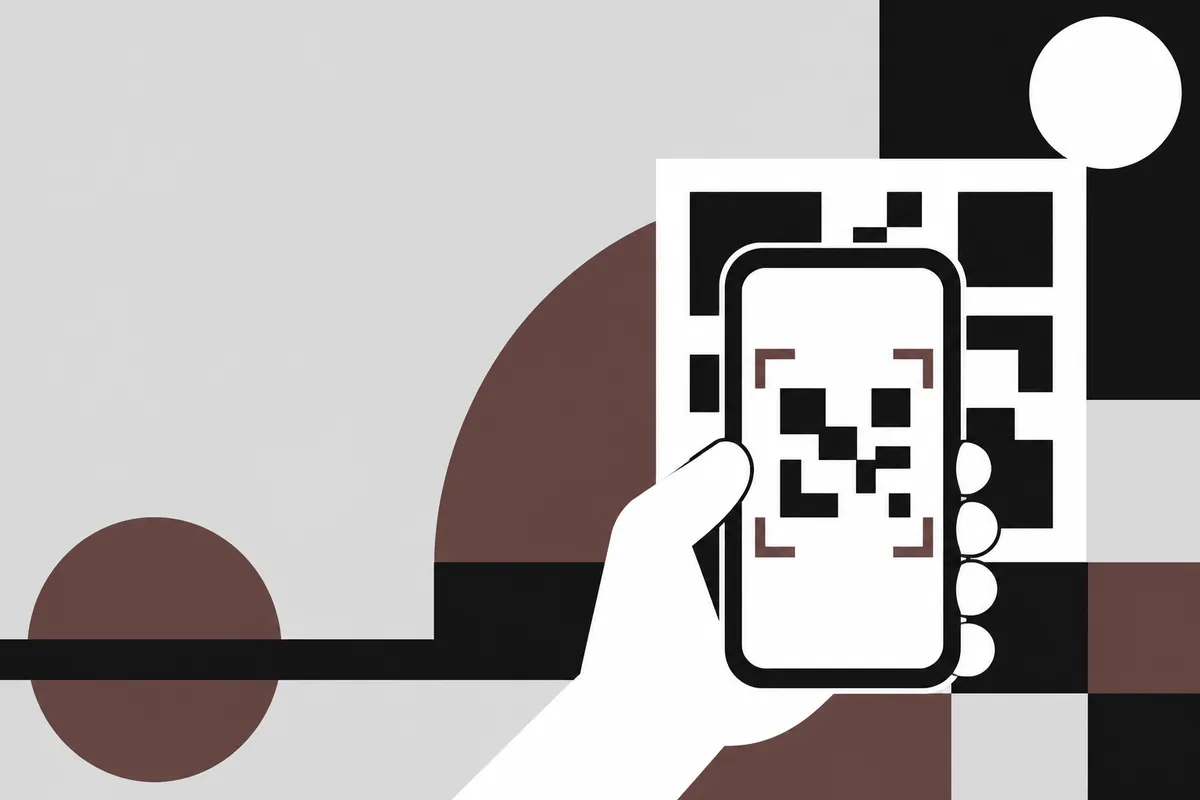
Scan a QR code from an image on Android
With Google Photos and Lens
- Take a screenshot of the QR code, or save the image from the chat or email.
- Open the image in Google Photos.
- Tap the Lens button (on some versions it is under More at the top).
- Lens highlights the code and shows the link or text it contains. Tap it to open or copy.
Google's Photos help page on Lens describes the same menu path. The exact button position changes between app versions and phone makers.
With a scanner app
- Open the scanner and look for a gallery or image icon on the camera screen.
- Pick the screenshot or photo.
- The app reads the code from the file and shows the result as if you had scanned it with the camera.
A scanner app is the better choice when the code is a barcode rather than a QR code, or when you want to keep a record of what you scanned.
Havelt QR reads QR codes and barcodes from photos in your gallery as well as from the camera, and keeps each result in a searchable history. Get it on Google Play
Scan a QR code from a screenshot
Screenshots come up all the time:a boarding pass in an email, a payment code on a website, a Wi-Fi code in a group chat. A few habits make them read first time:
- Zoom in so the code fills a good part of the screen before you take the screenshot. A tiny code in a full-page capture has fewer pixels to work with.
- Crop the screenshot to the code if the tool picks up the wrong thing, such as text around it.
- Turn off dark mode for that page if the code appears with inverted colours. Some readers struggle with a light code on a dark background.
- Do not screenshot a screenshot. Each copy through a chat app can be compressed again.
Scan a QR code on the same phone without a screenshot
If the code is in a web page, long-press the image. Chrome on Android offers a Lens search on images, which reads the code directly from the page. In some messaging apps you can also long-press a received image and open it in Lens.
If the code is a PDF attachment (tickets often are), open the PDF, zoom to the code and take a screenshot. Readers cannot always open a PDF page as an image.
When a QR code in an image will not scan
| Problem | What to try |
|---|---|
| Image is blurry or low resolution | Ask for the original file instead of a forwarded copy, or screenshot the original at a larger zoom |
| Part of the code is cut off | All three corner squares must be visible. Recapture with the whole code and a white border |
| Glare or shadow on a photo of paper | Take a new photo straight on, in even light, without the flash reflecting |
| Code is skewed or curved | Photograph it flat and square to the lens |
| Tool finds nothing | Try a different reader; some read only QR codes, others read barcodes and other 2D codes too |
| It is not a QR code at all | Boarding passes and ID cards often use PDF417 or Aztec, which need a reader that supports them |
Check the white margin too. A QR code needs some empty space around it, and a crop that touches the edge of the pattern can stop it reading.
Check the link before you open it
A QR code in an image can hide any web address, and you cannot see where it goes by looking at the pattern. The US Federal Trade Commission warns that scammers hide harmful links in QR codes and suggests these checks:
- Read the web address the scanner shows before you tap it. Look for misspellings or swapped letters in a familiar name.
- Be wary of QR codes in unexpected emails and texts, especially ones that say something is urgent.
- If a message claims to be from a company you deal with, go to its website or app the way you normally would instead of using the code.
- Keep your phone's software updated.
A reader that shows the content first, rather than opening links straight away, gives you that moment to check.
Scan from the gallery and keep the result
Pick a screenshot in Havelt QR and the code is read, sorted into a category and saved, with room for your own label and a note.
Get it on Google PlayiPhone version coming soon
More guides
- How to Make a Wi-Fi QR Code Guests Can Scan to JoinMake a Wi-Fi QR code from your network name, password and security type. What the code contains, how to print it, guest networks, and why it stops working.
- vCard QR Code: Put Your Contact Details on a Business CardHow a vCard QR code works, which fields to include, how to make one for a business card, size and printing tips, and vCard vs MeCard vs a link to a profile page.
- Types of Barcodes: 1D and 2D Codes and What Each Is Used ForThe main types of barcodes explained with their uses: EAN and UPC on products, Code 128 and Code 39, ITF-14 on cartons, Codabar, QR Code, Data Matrix, PDF417 and Aztec.
- GS1 Application Identifiers: List of Common AIs and How to Read ThemWhat GS1 Application Identifiers are, a list of the common AIs (00, 01, 10, 17, 21 and more), how to read a GS1-128 label, date formats and the FNC1 separator.
Published by Zoranta, the developer of Havelt QR.